Documentation
Enter Your Merchant Credentials
Where to paste your merchant credentials so your booking page can take cards
Once you have your merchant credentials (see "Get Your Merchant Credentials"), paste them into PestBooker and run the built-in check. Single-location accounts enter them once in Integrations → Payments. Multi-office (Enterprise) accounts enter them on each office’s Payments tab.
Requirements
- Your merchant credentials: an API key and Merchant ID for Field Routes Payments, or a security key for an NMI gateway
- Admin role in PestBooker
Is your PestBooker account one location or multiple offices?
If your dashboard sidebar has an Enterprise section, pick Multiple offices.
Open Integrations → Payments
In PestBooker, go to Integrations → Payments.
Open Integrations → PaymentsSee “credentials are set per office” instead of fields?
Your account is set up for multiple offices. .Pick your gateway and paste the credentials
Choose your company's gateway in the Payment Gateway dropdown:
- FieldRoutes Payments: choose Payrix, then paste the API Key and Merchant ID.
- NMI gateway: choose NMI (Network Merchants), then paste the Security Key. Only fill in Gateway URL if you don't sign in at secure.nmi.com.
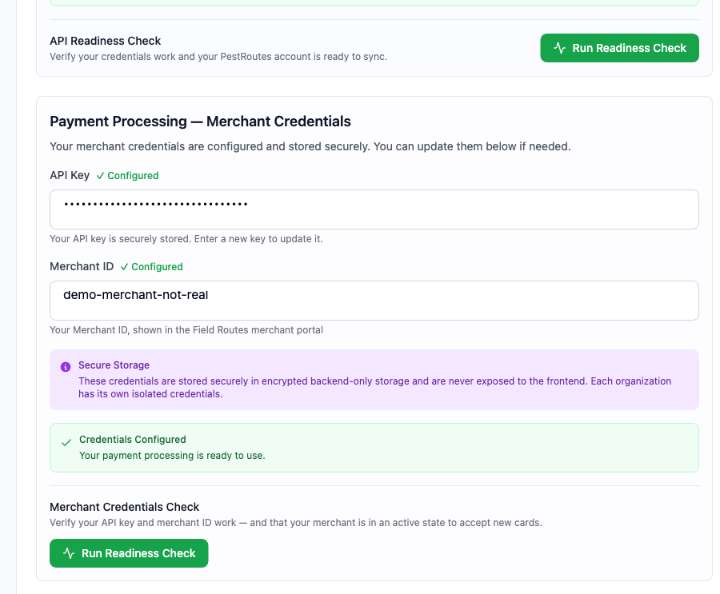
Save, then run the check
Click Save Changes. Then, in Merchant Credentials Check, click Run Readiness Check.
- Green: ready to take cards.
- Yellow on “Merchant ID found”: also fine. This is normal with a FieldRoutes Payments Public key. As long as “API key authenticates” is green, the key works. It can save cards but isn't allowed to read your merchant record.
- Red: something needs fixing. See “Stuck?” below.
Last step: one real test booking
Stuck? Common snags
Still stuck? Email support@pestbooker.com and we'll hop on a quick screen share and do it with you. Please don't email the keys themselves.
Single location: Integrations → Payments
- Go to Dashboard → Integrations → Payments.
- In Payment Gateway, choose Payrix for Field Routes Payments (then paste the API Key and Merchant ID) or NMI (Network Merchants) for an NMI gateway (then paste the Security Key; fill in Gateway URL only if you do not sign in at secure.nmi.com).
- Click Save Changes, then click Run Readiness Check under "Merchant Credentials Check". Green means ready. A yellow "Merchant ID found" is also fine with a Field Routes Payments Public key, as long as "API key authenticates" is green: the key can save cards but cannot read the merchant record. Red means something needs fixing.
- Tip
If the page says credentials are set per office instead of showing fields, your account is multi-office. Follow the multiple-offices steps.
Multiple offices: each office’s Payments tab
- Go to Dashboard → Enterprise (the Offices list), open the office, and click the Payments tab.
- Expand the "Merchant" section (it starts collapsed on purpose), choose the Payment gateway, and paste that office’s credentials.
- Click Run Readiness Check under "Merchant Readiness Check" (green or a yellow "Merchant ID found" is fine), then click Save credentials. The check does not save anything on its own.
- Repeat for every office that takes cards. Each office needs its own Merchant ID; the API key is often the same for all of them.
- Tip
An office left blank does not borrow from other offices. It uses the credentials of the Field Routes account it belongs to if it has its own, otherwise Integrations → Payments. The readiness check on each office tests exactly what that office will use.
Run one real test booking
- Book yourself through your booking page all the way to confirmation and check that the customer appears in Field Routes with the card on file.
- Then cancel the test customer’s appointment and subscription in Field Routes so nothing is billed.
Need help with setup?
Email us and we'll walk you through any integration or setup process.
Contact Sales