All docs
Documentation
Notification Settings
Choose who gets alerted internally, and where customers receive automated messages
PestBooker can email your team when important things happen (Settings → Notifications), and separately controls the automated emails/texts your customers receive (Settings → Messages). Each notification type can be toggled independently.
Requirements
- Admin role
1
Add internal recipients
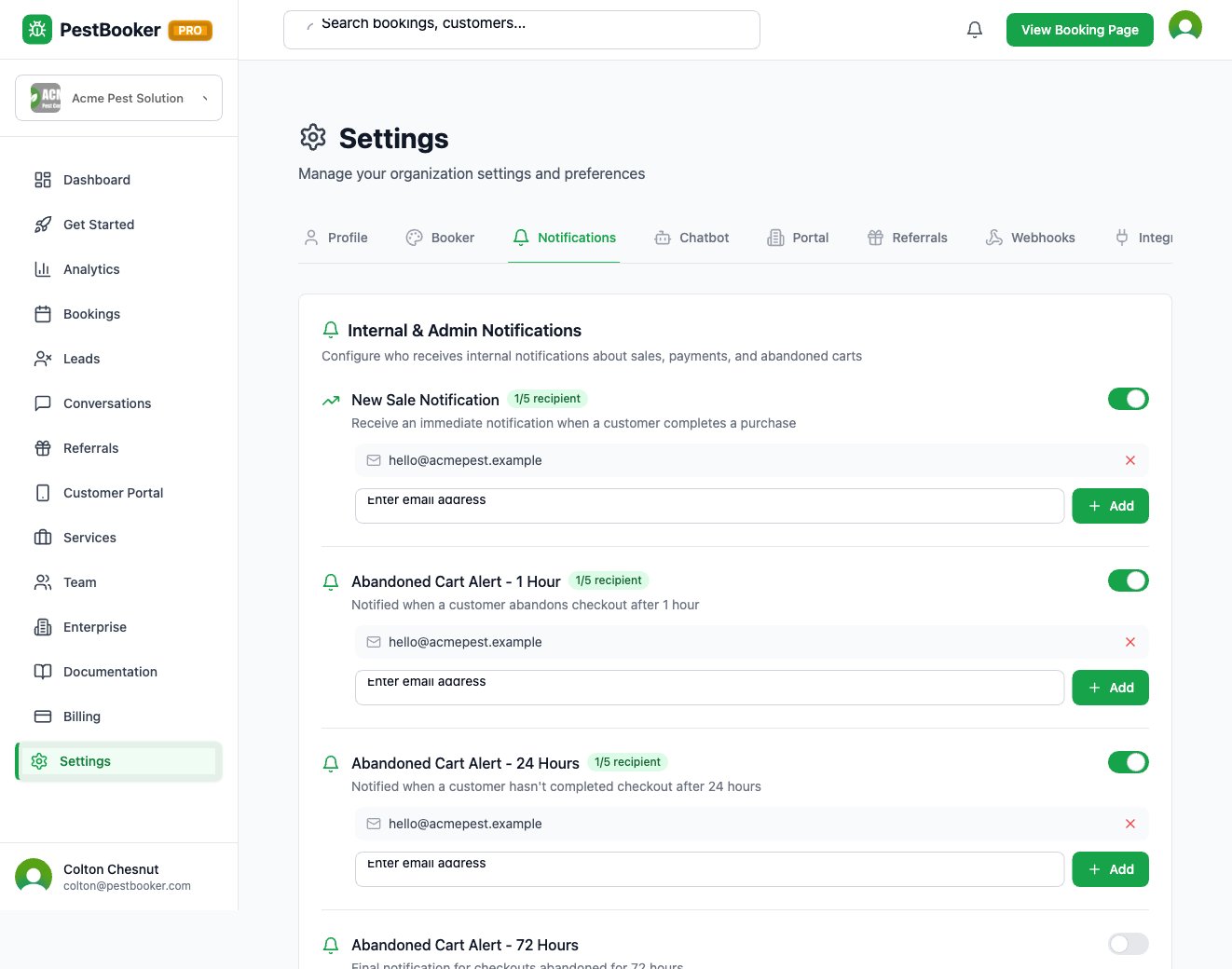
- Go to Dashboard → Settings → Notifications.
- For each internal notification type, add up to 5 email addresses and turn that type on or off independently.
- A badge shows how many recipients you have added for that type (e.g. "3/5 recipients").
2
Understand the internal notification types
- New Sale — a customer completed a booking
- Abandoned Cart — split into 1-hour, 24-hour, and 72-hour alerts so you can follow up at the right cadence
- Weekly Summary Report — a recap email sent on a schedule
- Inbound Message Alert — a customer sent an SMS or web chat message (includes the AI response, if the chatbot answered) — see "Conversations & Escalations"
- Referral Reward Approval — a referral reward needs your review before it is paid out
- Out-of-Service Lead — someone tried to book outside your service area
3
Configure customer-facing notifications
- Go to Dashboard → Settings → Messages to control what customers automatically receive — on/off toggles, separate from who on your team gets internal alerts
- Booking Confirmation Email — sent when a booking completes
- Abandoned Cart Reminders — separate Email and SMS toggles for each interval (1hr/24hr/72hr); SMS reminders require the Pro tier
- Edit the abandoned-cart email and SMS wording on the same Messages page, and use the preview links to see exactly what the customer receives
Pro Tips
- • Keep the recipient list current — stale addresses mean missed leads.
- • A shared/team inbox is more reliable than a single person's email.
- • Internal alerts live on Settings → Notifications; customer sends and copy live on Settings → Messages — do not confuse the two.
- • Preview any notification before enabling it so you know exactly what customers or your team will see.
Need help with setup?
Email us and we'll walk you through any integration or setup process.
Contact Sales