All docs
Documentation
Referral Program Setup
Reward customers and technicians for sending you business
PestBooker includes a referral program: existing customers (and your technicians) get a personal link or code, the new customer gets a discount, and the referrer earns a reward you approve. This guide covers turning it on and configuring rewards.
Requirements
- Admin role to configure rewards and approve payouts
1
Configure the program
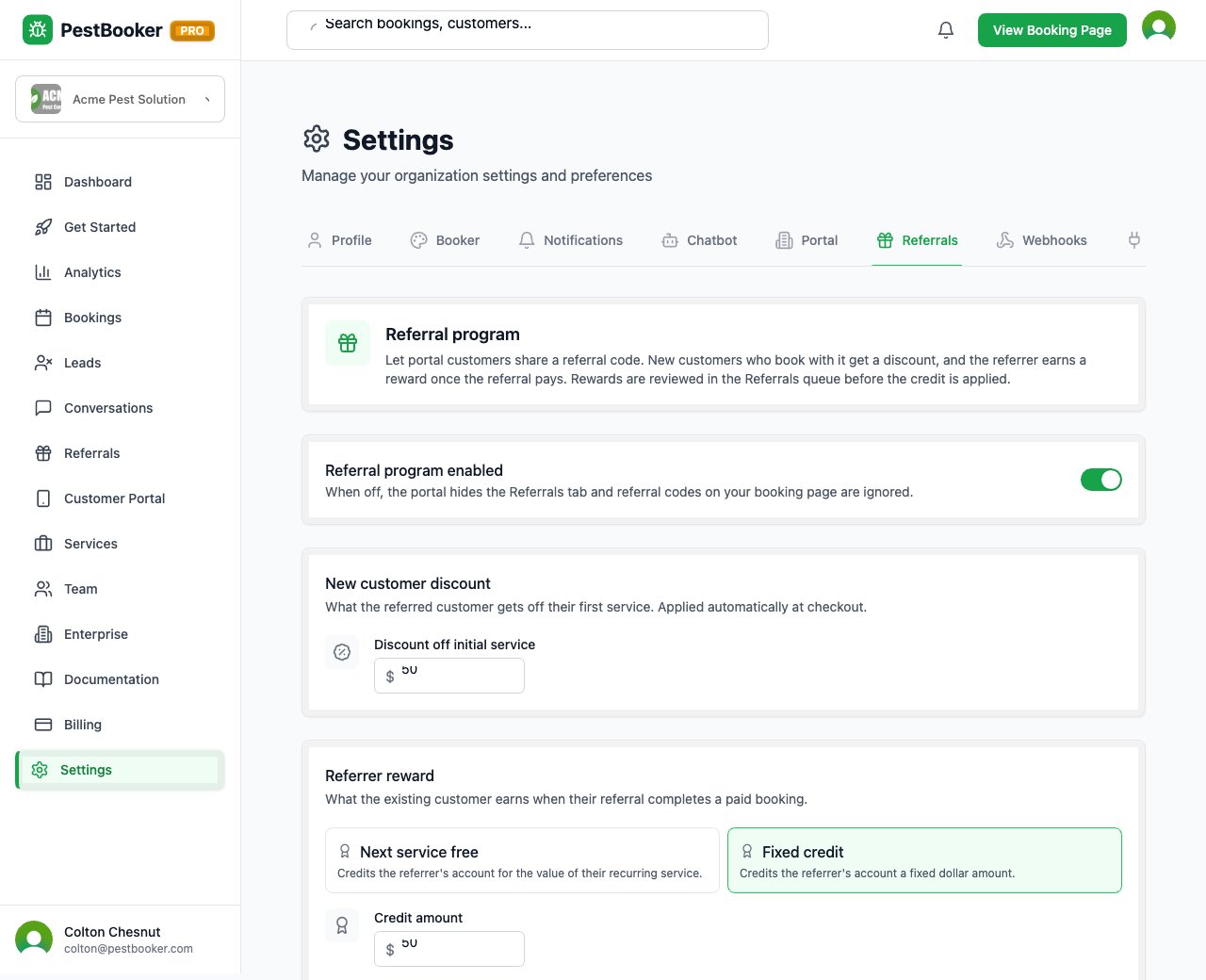
- Go to Dashboard → Settings → Referrals.
- Set the referee discount (what the new customer gets) and the referrer reward type: Next Service Free, or a Fixed Credit amount.
- Choose the fulfillment mode: Automatic (the reward is applied to the customer's Field Routes account as soon as it is approved) or Manual (your team applies it by hand).
- Choose whether rewards auto-approve or require manual approval.
2
Customer referrals
- Customers get a referral link/code (e.g., from the customer portal) to share.
- When a referred customer converts, the referee discount applies automatically and a reward is created for the referrer.
3
Technician referrals
- Technician referrals are a separate, independent toggle with their own settings: a per-conversion dollar payout amount and a separate referee discount.
- Unlike customer rewards, team members are paid in money - not a credit or free service - since they do not have a billing account to apply a credit to. Set up payouts and they are paid by direct deposit when you approve; otherwise you pay them yourself and mark the reward paid. See "Paying Your Team for Referrals".
- Go to Dashboard → Referrals → Technicians to pick a Field Routes employee (filtered to technicians) and generate their private code/link and a customer-facing share link.
- Tip
Technician referrals use Field Routes employees of type "Technician" — make sure your techs are set up correctly in Field Routes.
- Enterprise: on the Technicians page you can pick an office and browse or generate codes for that office's technician roster.
4
Approve and pay rewards
- Go to Dashboard → Referrals to review reward status: pending, approved, fulfilled, paid, or rejected.
- Admins vet referrers and approve rewards before they are paid. Team referral rewards always wait for your approval, even with auto-approve on.
- If rewards sit waiting, we email a reminder every few days until they are handled. Choose who gets it under Settings → Notifications → Referral reward; your billing contact gets it too.
- If an approved reward was set to auto-apply and the Field Routes update failed, it is flagged as "needs attention" with a manual retry button — check this periodically so no customer reward gets stuck.
Pro Tips
- • Decide auto-approve vs. manual approval up front — manual gives you a fraud check.
- • Customer and technician referrals are configured and rewarded independently — a team member is paid in money, never a credit.
- • Rewards flow through an approval workflow before payout; check the "needs attention" list for any auto-credits that failed to apply.
Need help with setup?
Email us and we'll walk you through any integration or setup process.
Contact Sales